> For the complete documentation index, see [llms.txt](https://guides.noloco.io/llms.txt). Markdown versions of documentation pages are available by appending `.md` to page URLs; this page is available as [Markdown](https://guides.noloco.io/nola/canvas/canvas-components.md).
# Canvas components
Add a Canvas to an existing record page or blank page as a component, to give a standard page a bit of custom, dynamic functionality
A Canvas doesn't have to be a whole page. When a standard [record page](/record-pages/overview.md) or [blank page](/pages/blank-pages.md) is almost right but you want **one** bespoke, dynamic section, you can add a Canvas to it as a **Canvas component** — a custom, Nola-built block that sits alongside your normal [components](/components.md).
This gives you the best of both: keep the standard page you already have, and drop in custom functionality exactly where you need it — without rebuilding the whole page as a [Canvas page](/nola/canvas.md).
## How to add a Canvas component
You add a Canvas component by **asking Nola** — there's nothing to drag in from a component menu. While you're on the page you want to add it to, describe what you need:
* "Add a Canvas component to this page that generates a prefilled sign-up link for this customer."
* "Add a section here that calculates this project's budget burn-down."
Nola builds the component and places it on the page. Tell her where it should go if it matters — "put it at the top", "below the details" — and refine it from there.
{% hint style="info" %}
Nola will also add a Canvas component **herself** when it's the best way to deliver something you've asked for. If you request custom functionality that a standard component can't provide, she may build it as a Canvas component rather than a whole new page.
{% endhint %}
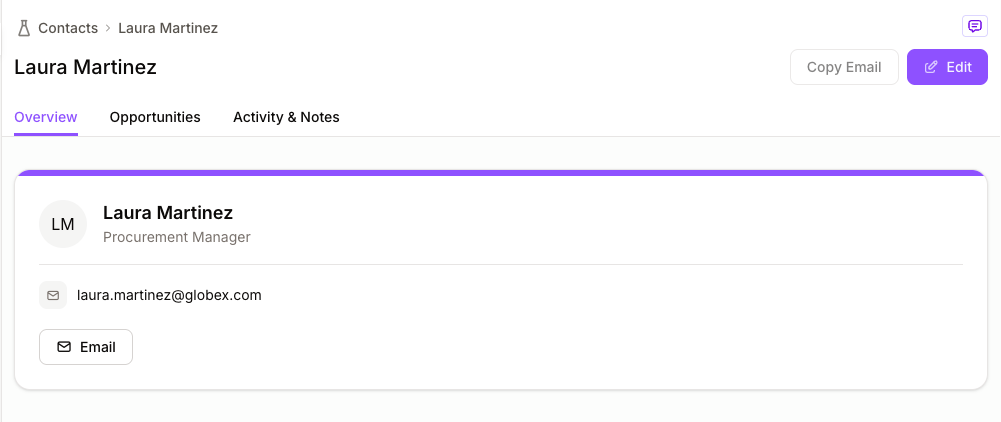
A Canvas component alongside standard components on a record page
## Working with the current record
When you add a Canvas component to a **record page**, it automatically knows which record is being viewed. That means it can show and act on **that record's** data — making it ideal for record-specific tools and summaries.
For example, on a Customer record page you could add a Canvas component that generates an upgrade link prefilled with that customer's details, or on a Project record page one that shows a live budget summary for that project.
On a **blank page or dashboard**, a Canvas component works with your app's data like any Canvas — there's no single "current record", so you point it at the data it should use.
{% hint style="success" %}
This pairs perfectly with [mini-tools](/nola/canvas/creating-canvases.md#mini-tools-and-calculators): a small generator or calculator, dropped onto a record page, that already knows the record it's working with.
{% endhint %}
## Editing a Canvas component
A Canvas component is edited exactly like any other Canvas — by chatting with Nola, or by [selecting an element](/nola/canvas/editing-canvases.md) on it and telling her what to change. See [Editing a Canvas](/nola/canvas/editing-canvases.md) for the full flow.
## What it can reuse, and what it can't
A Canvas component draws on the same platform capabilities as a [Canvas page](/nola/canvas.md) — your data, [charts](/views/display/charts.md), your app's theme — and the same limits apply: the advanced components (Kanban, timelines, and the data grid) aren't available in a Canvas yet, and it [uses credits](/nola/credits-and-usage.md) like any Canvas work.
## Visibility
A Canvas component follows the same [component visibility rules](/record-pages/visibility-settings.md) as every other component on the page — show or hide it by user role or by page values. Unlike a [Canvas page](/nola/canvas/configuring-canvases.md), a component doesn't have its own route or assigned spaces; it lives wherever you place it on the host page.
## Next steps
{% content-ref url="/pages/0R2msA13l8bSqOalCJKN" %}
[Creating a Canvas](/nola/canvas/creating-canvases.md)
{% endcontent-ref %}
{% content-ref url="/pages/T3oRwEaHeuXCakVTGeqb" %}
[Editing a Canvas](/nola/canvas/editing-canvases.md)
{% endcontent-ref %}
---
# Agent Instructions
This documentation is published with GitBook. GitBook is the documentation platform designed so that both humans and AI agents can read, navigate, and reason over technical content effectively. Learn more at gitbook.com.
## Querying This Documentation
If you need additional information that is not directly available in this page, you can query the documentation dynamically by asking a question.
Perform an HTTP GET request on the current page URL with the `ask` query parameter, and the optional `goal` query parameter:
```
GET https://guides.noloco.io/nola/canvas/canvas-components.md?ask=&goal=
```
`ask` is the immediate question: it should be specific, self-contained, and written in natural language.
`goal` is optional and describes the broader end goal you are ultimately trying to accomplish on behalf of the user. GitBook uses it to tailor the answer towards what is most useful for that goal.
The response will contain a direct answer to the question and relevant excerpts and sources from the documentation.
Use this mechanism when the answer is not explicitly present in the current page, you need clarification or additional context, or you want to retrieve related documentation sections.